Grant access to the cluster
All ElastiCache clusters are designed to be accessible from an Amazon EC2 instance. The most common scenario is accessing an ElastiCache cluster from an Amazon EC2 instance in the same Virtual Private Cloud (VPC), which will be the case for this lab.
By default, access to your cluster is limited to the user account that was used to create it. Before you can connect to a cluster from an EC2 instance, you must allow the EC2 instance to access the cluster. The required steps depend on whether you are launching your cluster into EC2-VPC or EC2-Classic.
The most common use case is when an application deployed on an EC2 instance needs to connect to a cluster in the same VPC. The simplest way to manage access between EC2 instances and clusters within the same VPC is to do the following:
Create a Security Group VPC for your cluster. This Security Group can be used to restrict access to cluster instances. For example, you can create a custom rule for this Security Group that allows TCP access using the port you specified for the cluster when you created it and an IP address you will use to access the cluster.
The default port for Redis clusters and replicas group is 6379.
To create a rule in Security Group VPC that allows connections from another Security Group
-
Sign in to the AWS Management Console and open the Amazon VPC console at https://console.aws.amazon.com/vpc.
-
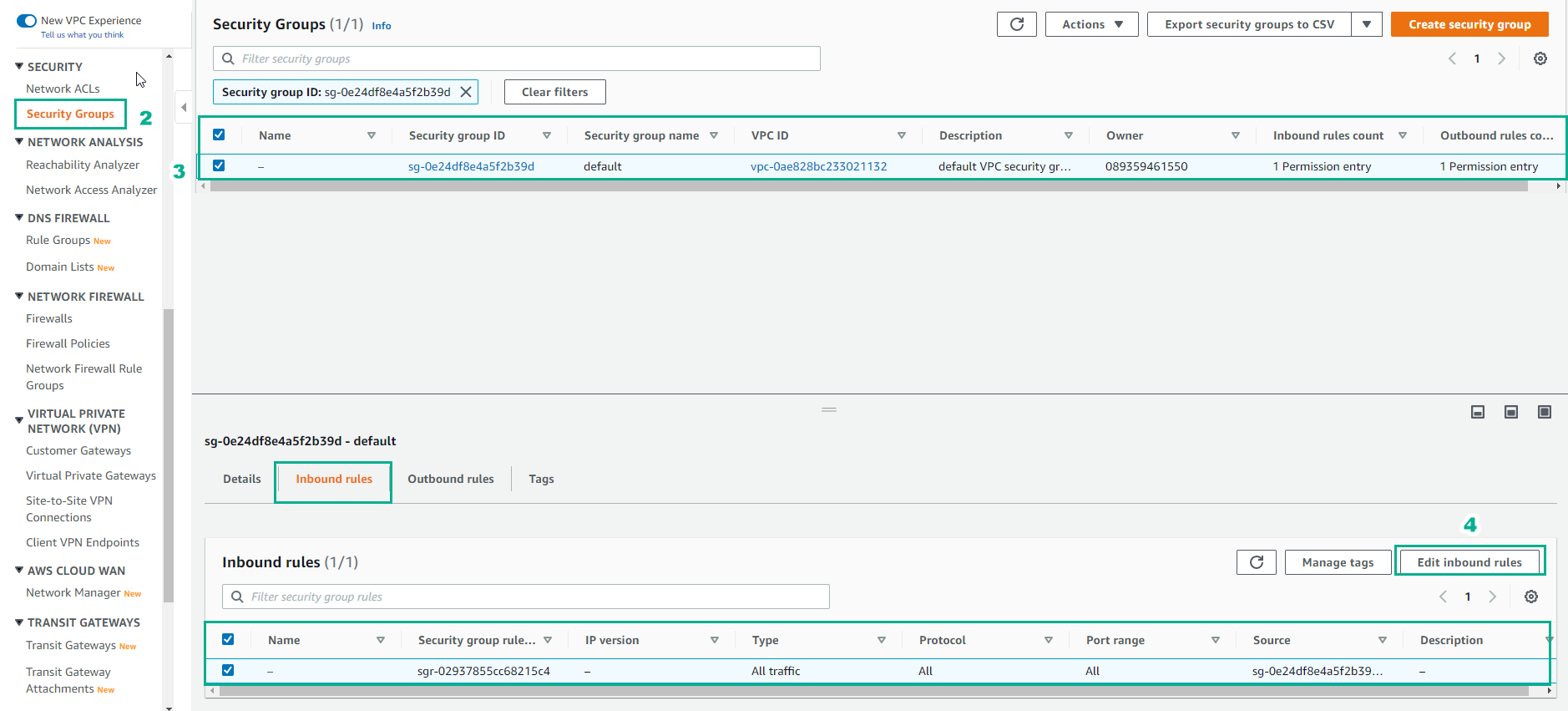
Select Security Groups.
-
Select or create a security group that you will use for Cluster instances.
-
In Inbound Rules, select Edit Inbound Rules
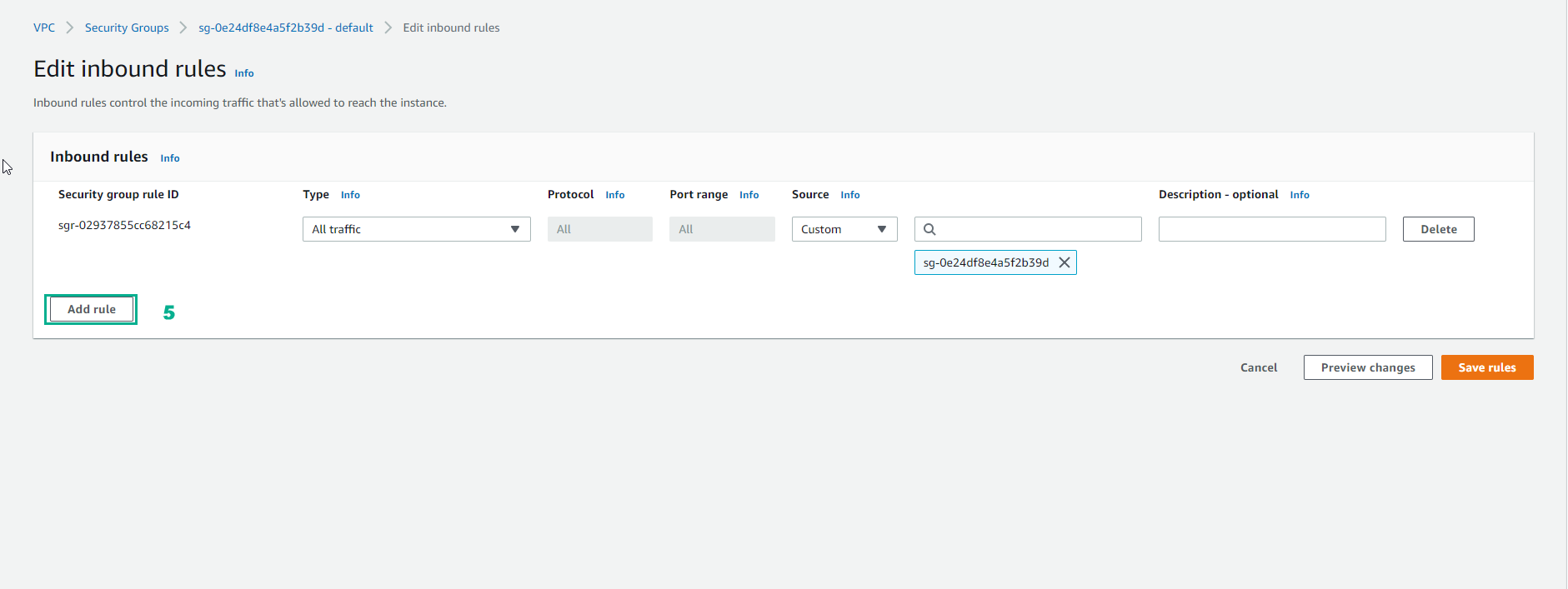
 5. then select Add Rule. This security group will allow access to members of other security groups.
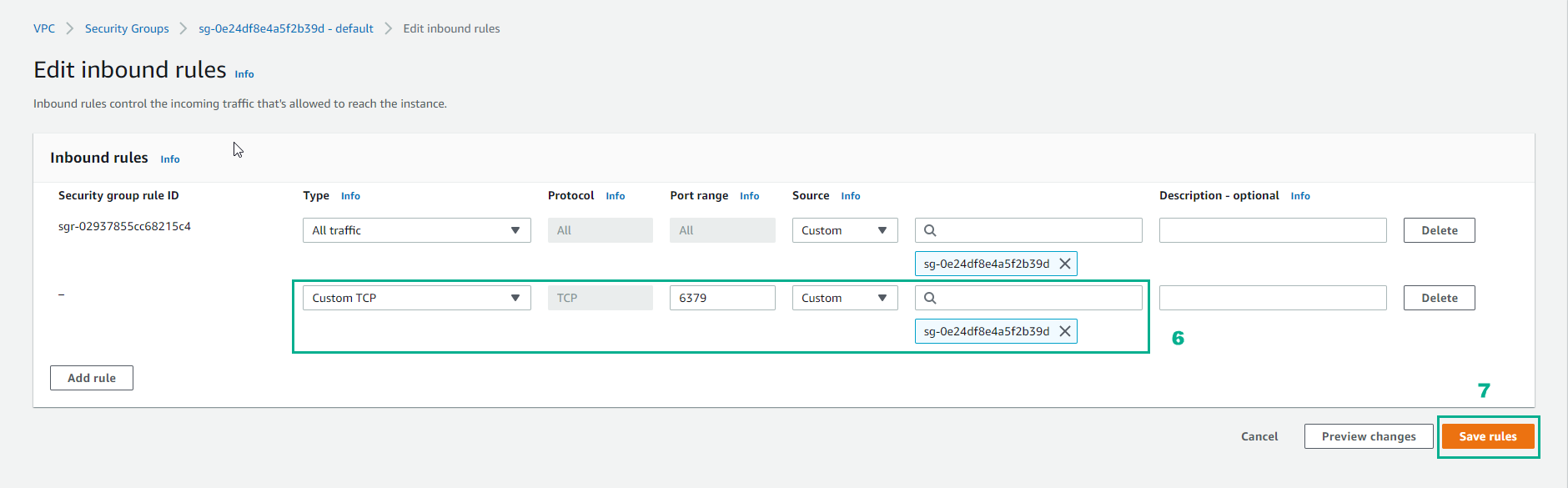
 6. For Type, select Custom TCP Rule
-
For Port Range, specify the port you used when you created your cluster.
-
The default gateway for Redis clusters and replication groups is 6379.
-
In the Source box, start entering the ID of the security group. From the list, select the security group you will use for your Amazon EC2 instances.
- Select Save rule when you’re done.